

If you press a player-switch button in EA SPORTS FC 27 and suddenly control the wrong defender, it is tempting to blame input lag. But several different systems influence selection: the left shoulder button's recommended defender, directional right-stick targeting, the reference point used for that direction, automatic switching after loose balls and even a calibration intended to account for the delay between deciding and pressing the button.
The distinction matters in FC 27 because EA's official Gameplay Deep Dive placed greater weight on manual defending in Competitive gameplay. AI teammates concentrate more on support and positioning instead of automatically tackling for you. EA's separate Accessibility Resources describe exactly how Right Stick Switching, Next Player Switching, Auto Switching, Reaction Time Calibration and Player Lock work. This guide turns those definitions into a controlled way to diagnose selection errors, without promising a magic 'zero lag' setting.
Why switching matters more in FC 27
EA's official Gameplay Deep Dive explains that Competitive AI defenders spend more time positioning and supporting the user, while their automatic attempts to tackle and interception reach have been reduced. Manual defenders receive more reach in interceptions and improvements to jockey response and manually triggered standing tackles.
- Test LB/L1 separately from directional right-stick switching.
- Start from EA defaults and write them down.
- Reference, Sensitivity and Auto Switching are distinct systems.
- Reaction Time Calibration is not a ping repair tool.
- Change one option at a time and compare practice results.
That does not mean computer-controlled teammates never react to loose balls. It means that moving to the correct defender and timing an intervention has become more important. Changing a switch setting does not replace positioning or guarantee a tackle.
First distinguish LB/L1 from right-stick selection
EA documents Next Player Switching for the controller's left shoulder button and a separate Right Stick Switching menu. The shoulder input follows a recommended-target preference; the stick can use directional targeting or a two-stage selection mode.
If LB/L1 picks an unexpected center-back, changing the stick's sensitivity alone may do nothing. Recreate the same attacking situation offline and try each input separately before deciding which system needs adjusting.
Next Player Switching: Classic, Goal Side and Closest
The default Classic Next Player Switching picks the player EA's algorithm judges most favorably positioned using several factors. Goal Side favors players between the ball and your goal; Closest to Ball favors defenders nearest the ball. These options govern the left shoulder button.
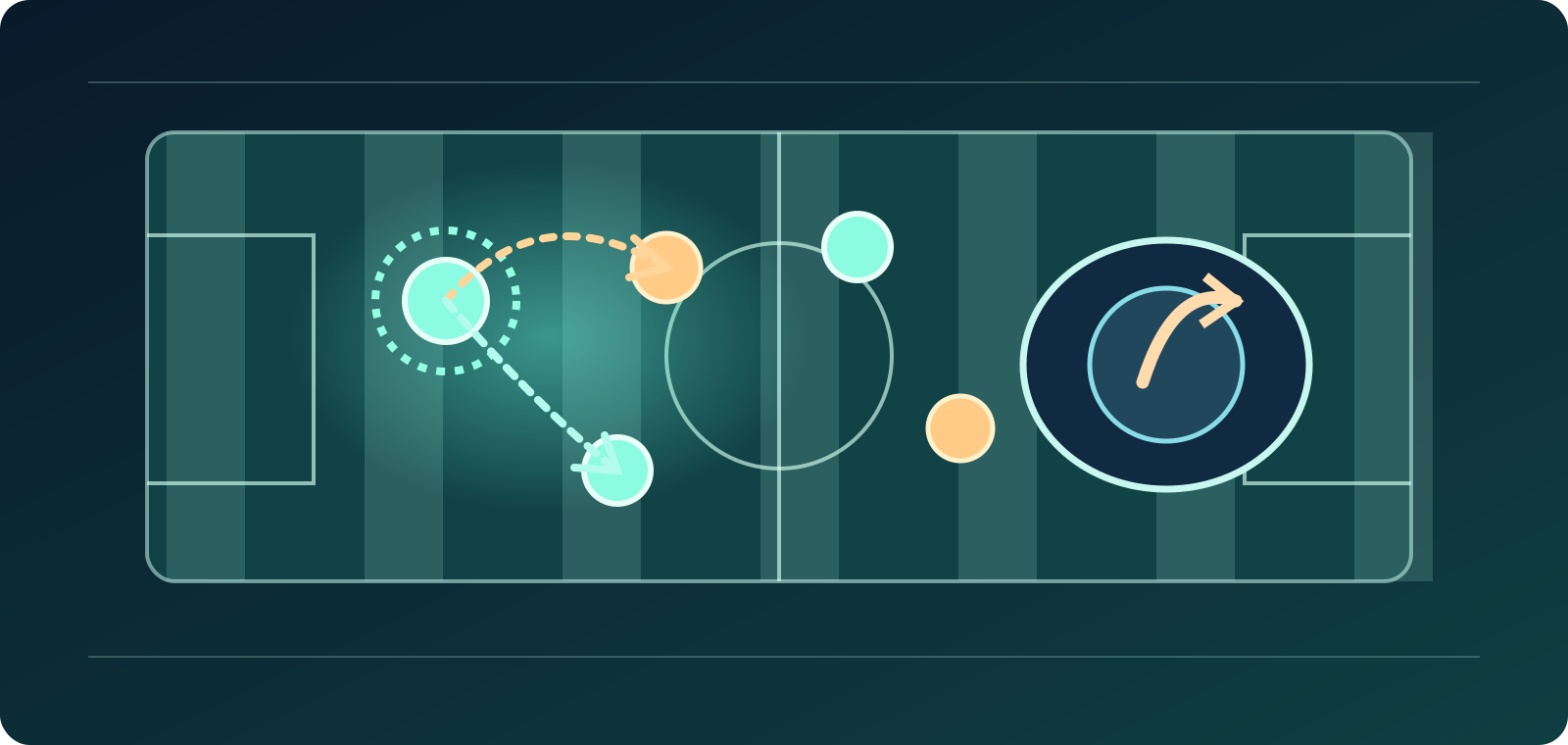
Goal Side might suit a player who keeps dragging a defender out of shape, while Closest to Ball may favor immediate pressure. But the closest defender is not necessarily the best one for protecting a passing lane or stopping an overlapping runner.
Right Stick Classic: directional flick
Classic is the default Right Stick Switching mode. According to EA, a flick of the right stick selects the next nearest player in the direction you indicated, using whichever reference point is currently configured.
For a clean baseline, leave Classic enabled and aim relative to the controlled defender. A slightly off-angle flick can lead to a nearby but unintended teammate; practice recognizing the selected player's position before blaming server latency.
Player Rotation: preview then confirm
With Player Rotation, the marker for the next selection moves in the direction of the stick, but you do not actually take control until pressing the left shoulder button. This adds a confirmation step rather than an immediate transfer.
It may help if single flicks regularly choose the wrong defender, because you have a chance to observe the marker. The tradeoff is one extra action during fast breaks, so experiment at normal practice speed before using it competitively.
Adaptive: stick hold duration changes distance
Adaptive uses how long you hold the right stick. Holding it further or longer selects a defender farther away in the indicated direction. EA does not specify one universal millisecond threshold for the transition.
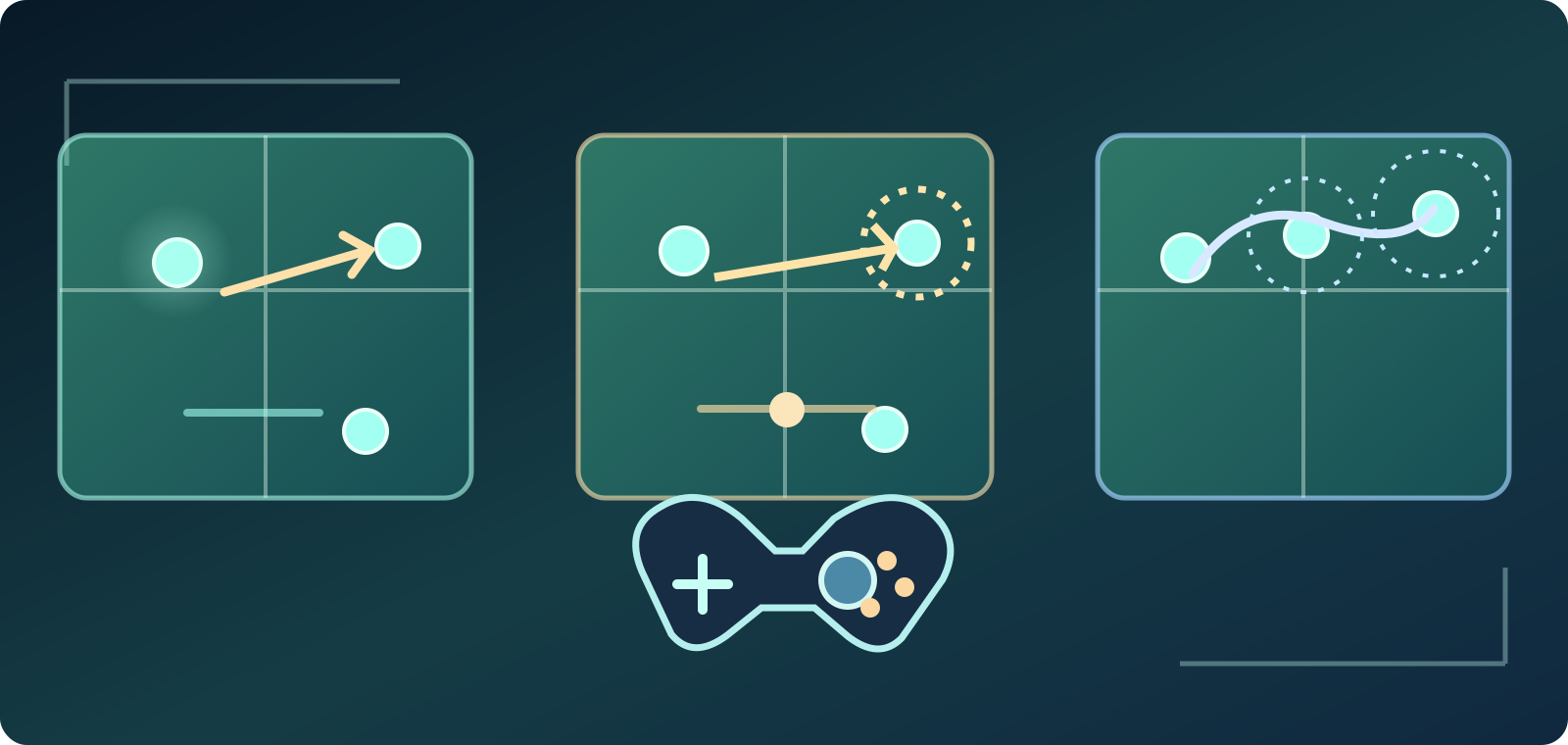
If you intend to select a nearby fullback but hold the stick too long, you may target a more distant defender. Test a short flick and a longer hold in the same scenario to discover the behavior of your current sensitivity.
Player Relative versus Ball Relative reference
Right Stick Switching Reference defaults to Player Relative: the controlled player is the origin from which directional targeting is interpreted. Ball Relative instead uses the ball as the direction's reference point.
This distinction can feel like the game chose a player 'on the wrong side' when ball and controlled defender are far apart. Change only the reference and repeat a familiar situation to see whether it matches how you naturally visualize the pitch.
Right Stick Switching Sensitivity 0–10
EA provides Right Stick Switching Sensitivity from 0 to 10, default 4. Increasing the value makes selection more responsive to the intended stick direction and duration, according to the official description.
A value of 10 is not documented as 'the pro setting' or an automatic accuracy fix. Start at 4, test one small change and record which defender you intended versus which one actually became active.
Five Auto Switching choices
Auto Switching options are On Air Balls and Loose Balls (default), Manual, Only on Air Balls, Automatic and Only on Loose Balls. They define situations where the game may transfer player control on its own.
If control changes unexpectedly during a deflection, a loose-ball automatic switch may be the source. Moving to Manual can reduce that behavior but also gives you more responsibility when the ball changes direction suddenly.
Why a defender keeps running after the switch
Auto Switching Move Assistance defaults to None and can be set to Low or High. EA says the assistance lets the newly selected player continue moving in the previous direction briefly, giving you time to orient yourself.
That continuation may feel like the game ignored your stick for a moment. Compare None with Low in training, but remember player momentum, existing animation and your own input timing can contribute to motion too.
Reaction Time Calibration is not network ping
Reaction Time Calibration is On by default. EA describes a mechanism that accounts for possible delay between intending to switch and pressing the control, potentially selecting the player that was recommended just before the currently indicated one.
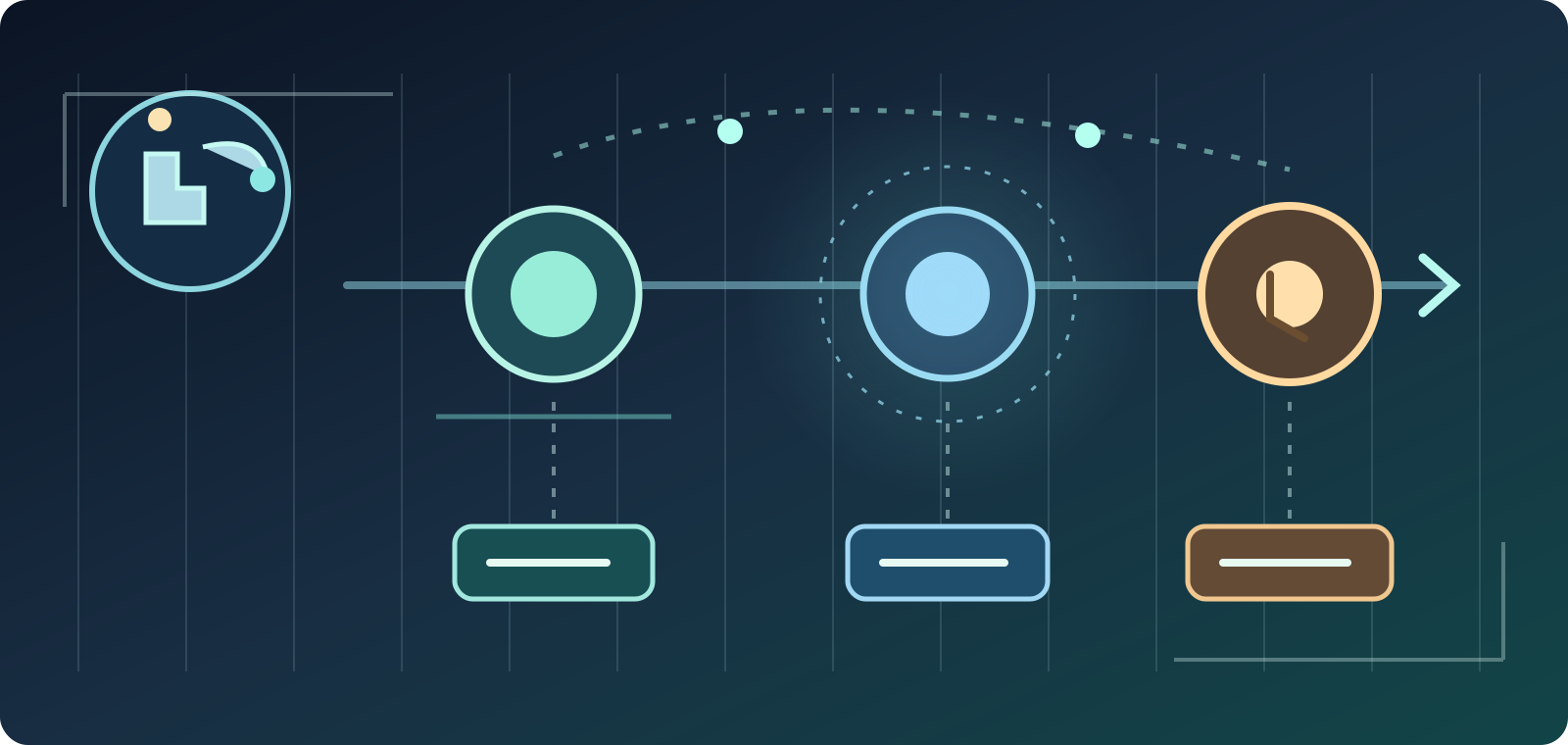
This is not a bandwidth test or evidence that the game fixed internet latency. If the recommended defender marker moves rapidly just before your press, test Calibration On versus Off in repeatable conditions before making a network diagnosis.
Reaction Time Calibration Sensitivity: default 6
The related Reaction Time Calibration Sensitivity slider ranges from 0 to 10 and defaults to 6. When calibration is On, higher values lengthen the allowance before the system commits to the current recommended player.
The official instructions do not name a universal ideal number for a particular ping, device or skill level. Preserve the starting value, adjust one step at a time and compare selection outcomes offline. Network delay should be investigated separately.
Player Lock is a separate feature
Player Lock is Off by default and can be enabled. EA's controller description says pressing both analog sticks together can lock you to the currently controlled player instead of allowing automated switching behaviors to move you elsewhere.
Because locking control can also prevent a needed emergency switch, learn how your game's input releases that lock before relying on it in an online match. It is not the same as disabling Auto Switching globally.
Advanced, Tactical and Legacy Defending
EA lists Advanced Defending as the default, where different button inputs let you choose the type of tackle. Tactical Defending contextually selects a tackle type. Legacy Defending automates more of the tackle action but is unavailable with the Competitive preset.
These settings change what happens after you have selected the defender, not which defender LB/L1 targets. Do not tell a Rivals player to turn on Legacy in a competitive mode that officially excludes it.
Jockey and Pass Block Assistance work alongside switching
Jockey defaults to Assisted, automatically adjusting defender speed to stay close; Manual makes you maintain the distance yourself. Pass Block Assistance is On by default and helps players attempt interceptions; Off means interceptions must be triggered manually.
EA also says Teammate Contain applies pressure from farther away in FC 27 Competitive, increasing the importance of taking control and positioning yourself. An inaccurate switch and a mistimed tackle are separate problems even when they lead to the same conceded goal.
A five-test troubleshooting routine
First record your original options. Second compare LB/L1 Classic versus Goal Side in the same attacking pattern. Third test Right Stick Classic with Player Relative. Fourth compare Reaction Time Calibration On and Off while watching the recommended marker. Fifth check Auto Switching Move Assistance and whether the direction of the new defender feels controlled.
This is an editorial testing protocol, not a hidden EA diagnostic. Use Kick Off or a safe practice session instead of risking ranked results; modify one variable per test, and record your intended defender and the defender selected before committing to a new setup.
Competitive limits, source dates and false promises
EA's Accessibility Resources states that Competitive gameplay presets bring mandatory online multiplayer settings to offline play; some custom/Legacy choices therefore will not be available in competitive events. These definitions are based on the official North American English documentation, and menu names may be localized.
Sources & references3
We also checked the July Gameplay Deep Dive and September 30 Gameplay Developer Launch Update. EA said it was monitoring defensive issues and would avoid hasty core-gameplay balance changes—not that every fullback or selection complaint was already fixed. These sources describe functionality; no control adjustment guarantees wins, stable ping or a patched bug. Official