

Fortnite split-screen, also called Local Multiplayer, lets two people use one television and one PlayStation or Xbox console for selected experiences. You don't start it by choosing a universal two-player button: the second player needs a separate console profile, their own linked Epic Games account and a connected controller. Then both players choose a supported experience. Epic's current support includes Battle Royale, Zero Build, LEGO Fortnite Brick Life among available local-multiplayer choices. If you cannot see player two, the triangle prompt is absent on PlayStation or the screen stays single-player, follow the order below rather than resetting the console or changing account permissions at random. Important: two official Epic pages contradict each other about LEGO Fortnite Odyssey, so do not assume split-screen works in that mode without checking its current eligibility.
1. Which Fortnite platforms actually support split-screen?
Epic officially supports local split-screen play on PlayStation and Xbox consoles. The feature does not work on PC, Nintendo Switch or mobile, even if you connect two controllers there. Having cross-play enabled does not add a console-local two-player mode to unsupported platforms. PC players can join a compatible online party from their own separate systems, but that is not the same as splitting one PC display. If your family is on PS5, PS4, Xbox Series or Xbox One, begin with an account and mode check instead of hunting for a missing PC setting.
2. Supported games and modes: verify the Local Players tag
Epic lists Battle Royale, Zero Build, LEGO Fortnite Brick Life as examples of games that can support Local Multiplayer, with further supported experiences available through Discover. Duos and Squads are typical Battle Royale choices. To confirm any particular island or experience today, open Discover → Great for Local Multiplayer and look for the Local Players tag under Game Details. Not every LEGO, community-made or seasonal mode necessarily accepts two local players; mode availability can change. A mode that permits ordinary online parties is not automatically split-screen compatible. There is an important conflict in Epic's own documentation: the general Local Multiplayer guide lists Odyssey, but the Odyssey-specific 'Disabled' support page explicitly says it does not support split-screen and advises using just one controller/account when a LEGO world cannot be entered. We therefore cannot promise Odyssey local play; check the current Local Players label and consult both official pages: https://www.epicgames.com/help/c-34254770/a10401868 | https://www.epicgames.com/help/c-44968506/c-36563195/a11699618?lang=en-US
3. Modes that will not activate split-screen
Epic's current support explicitly excludes split-screen in Solos, Ranked Mode, Creative Mode, Limited Time Modes and Save the World. These are separate restrictions from whether a game supports online cross-play. If an unavailable mode is selected, switching controllers or DNS will not make local play appear. Try a currently supported Duos, Squads, Zero Build or appropriate LEGO experience that carries the Local Players label. If only an event's mode fails, change the mode before assuming the entire console, child account or game installation is broken.
4. Player two needs a real, separate console account
Connect controller two and select the second player's console profile. Epic states Guest and Quick Play console accounts are not supported. That means a temporary guest shortcut is not an interchangeable substitute for signing into a real PlayStation or Xbox user. Make sure controller one still belongs to player one and controller two to player two. The second profile must have appropriate platform multiplayer privileges; child account restrictions need approval from the authorized parent or guardian. Creating an extra account purely to bypass restrictions is not a legitimate repair.
- Supported hardware: PlayStation/Xbox; not PC, Switch or mobile.
- Accounts: two separate full console profiles, each with its own Epic link.
- Games: check Local Players; typical BR Duos/Squads, Zero Build, supported LEGO.
- Excluded: Ranked, Solos, Creative, Limited Time Modes, Save the World.
5. Connect each console profile to its own Epic Games identity
After selecting the second full console account, Fortnite may prompt that player to link an Epic Games account. Complete the linking flow using the second player's own authorized credentials, not the host's Epic login. Linking matters for Locker outfits, Battle Pass, Quests and progression. If the wrong Epic account is already tied to a console profile, do not immediately unlink it: account progress and relinking limitations require checking Epic's official account support first. When finished, the second player appears in the Lobby. This is the point to verify two names before launching an experience.
6. The full sequence from Lobby to a shared screen
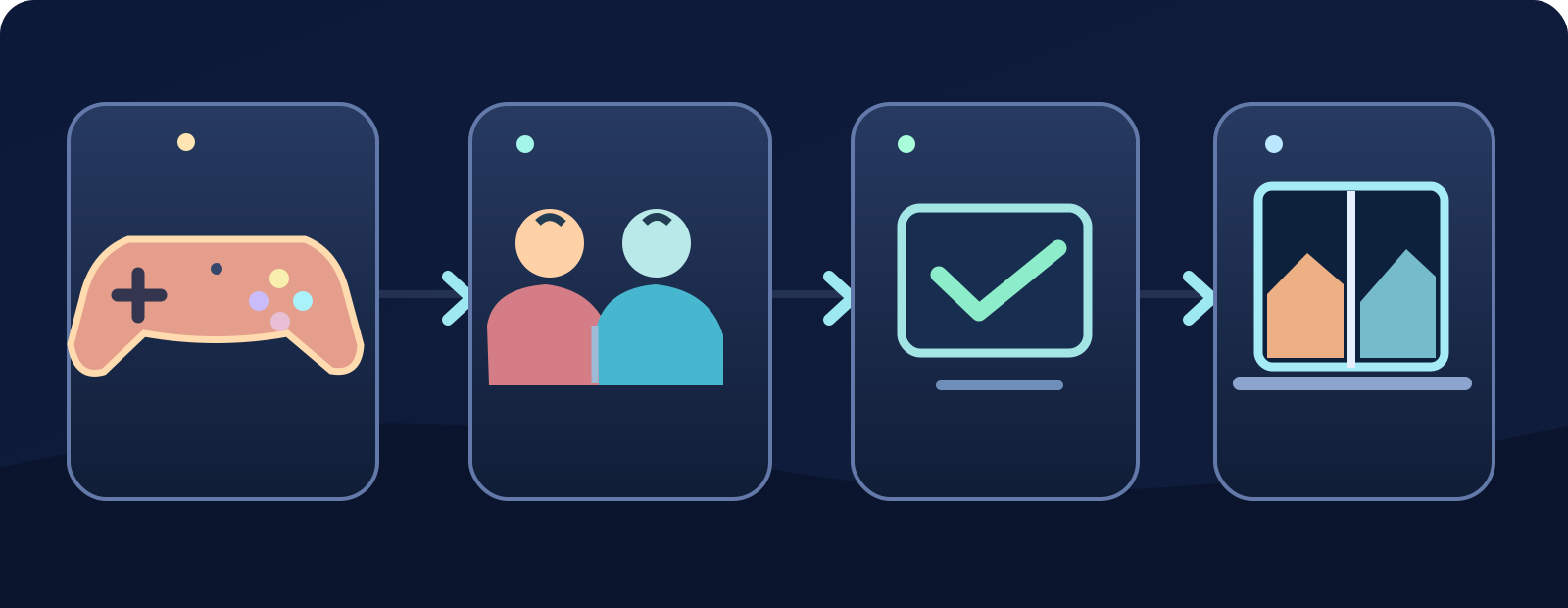
- Second controller
- Separate accounts
- Supported mode
- Shared screen
Start Fortnite and remain in the Lobby, connect the second controller, select its own console account and finish its Epic link if asked. Look for both players in the lobby and then navigate Discover to a supported experience carrying Local Players. Once the match begins, the console automatically enables the shared local display. Do not expect the entire Lobby or its submenus to be permanently split; Epic states split-screen applies inside the match only. The illustrated four-step flow beside this section is a conceptual checklist, not a screenshot of Fortnite settings.
7. Where is the button on PS5 or PS4?
Some PlayStation users look for the triangle option to add another player. Epic's PlayStation article says that if triangle or split-screen is missing, first recheck the ordinary local multiplayer procedure, then confirm both controllers are properly connected and assigned, and that both players use separate correctly linked Epic accounts. Verify you selected a compatible mode and that Fortnite and PlayStation system software are updated. Restarting the console may clear a temporary input or service glitch. Do not regard the triangle icon alone as a guarantee that the current chosen experience supports local play.
8. Xbox: player two fails to join or screen stays single
Epic's dedicated Xbox split-screen help specifically recommends clearing the console's cache following the supported Xbox Series X|S instructions, then restarting the console if needed. Before that, confirm separate non-guest console accounts, properly connected controllers and an eligible mode. Cache troubleshooting should be done with official console instructions; it is not a factory reset, account deletion or license erasure. If standard Xbox party invitations fail separately, consult the console's privacy and invite permissions. This is a different problem from the local screen itself failing to split.
9. Both players must use the same language settings
Epic states that both players must have the same language settings to use Local Multiplayer. A host playing with an English interface and a second player set to another language can face an unexpected setup limitation. Compare the two profile/game language selections and choose the same supported setting, then restart a fresh match. This is not a requirement to change your Epic account country, billing region or console ownership. In a multilingual household, the language match is an easy check worth doing early, before network troubleshooting.
10. Split-screen is match-only and inventories remain separate
Epic clarifies three easy-to-miss limits: the Lobby and submenus are not shared in split-screen, players cannot share inventory in local play, and if either player leaves or disconnects, the Local Multiplayer session ends. This means an apparently single-screen Lobby does not necessarily indicate a failed setup. In-game, each player retains their own view and actions. Do not plan on using player two as a persistent spectator while player one continues after an exit. If the screen reverts to one view when a teammate leaves, check whether that is expected session behavior.
- Required: second controller and a non-guest user profile.
- Required: both game languages match; stable internet.
- Expected: two names in Lobby, split display in a supported match.
- Expected: second player leaving ends the local multiplayer session.
11. Internet stability and service issues still matter
Although two players share one console, Local Multiplayer still needs a stable internet connection, as Epic explicitly says. If both players are suddenly disconnected, test the console network, authorized Wi-Fi or Ethernet connection, and whether other online Fortnite functions work. Restart the game or device normally before advanced changes. A worldwide service incident is distinct from a controller profile not appearing in the Lobby. Avoid blanket DNS promises, unapproved router resets, disabling your firewall or turning off parental controls as a way to make split-screen work.
12. 'This experience is locked for player 2' is a separate case
Epic documents the literal error 'This experience is locked for player 2' and notes its troubleshooting can differ from the more general 'This experience is locked. Your parent or guardian needs to unlock it' message. The official article discusses console-cache troubleshooting, while a genuine child-account permission issue must be handled by the authorized parent/guardian. Do not infer every locked-game message is a permanent ban or network outage. Confirm the exact sentence and whether it appears when split-screen is active or in an ordinary party before taking further action.
13. How to remove player two or fix a gyro control problem
To exit split-screen, Epic says to move to the second player's icon in the screen's upper area and select the option to remove or kick that player. This returns play to the single-player setup; it does not require logging out the entire console or deleting accounts. If gyro aiming behaves incorrectly during split-screen, Epic's guidance is to check that both profiles have Gyro Aiming enabled in their settings, rather than assuming the two users share one control configuration. Report persistent gyro bugs using Fortnite's official in-game reporting route.
- PlayStation: verify controllers/account links/mode/updates and restart.
- Xbox: supported cache clear, then restart.
- Player 2 locked: check exact message and authorized account permissions.
- Escalate: official Epic Support with details and no personal secrets.
14. A useful support report if all prerequisites are met
When contacting Epic, prepare console model (PS5/PS4/Xbox), game version, controller count and assignments, whether player two is a real console account, both separately linked Epic accounts confirmed without sharing credentials, both language settings, selected experience and Local Players tag, exact on-screen error or missing triangle prompt, network type and results after restart. Mention whether the split-screen appears during the match or whether only the Lobby remains unsplit. A short clip without personally identifying information can help. Never share passwords, 2FA codes, family-control PINs or sensitive account data.
The dependable order: PlayStation/Xbox → supported Local Players mode → second controller → independent non-guest console account → properly linked second Epic identity → same language → stable connection → launch the supported match. If the second player still won't appear, follow Epic's platform-specific PlayStation or Xbox guidance, rather than modifying saves, resetting the console or bypassing account security.
Sources & references7
**Epic Games official sources reviewed October 8, 2026:** ; ; ; ; ; ; Available islands change: use Discover's current Local Players tag rather than assuming every online mode supports split-screen.
- Epic Games — a10401868epicgames.com
- Epic Games — why can t i play fortnite in split screen on my playstation a202300000011120epicgames.com
- Epic Games — split screen not working in fortnite on xbox a10251430epicgames.com
- Epic Games — a25428190epicgames.com
- Epic Games — a23275147epicgames.com
- Epic Games — a14897119epicgames.com
- Epic Games — players unable to join a party in fortnite a17014038epicgames.com