

You connect a DualSense to your PC, the analogue sticks work, and the character moves—yet the game asks you to press A instead of Cross, or B instead of Circle. Another title recognizes the controller but loses adaptive triggers or richer haptics when the connection changes. None of these symptoms alone proves that the controller is defective. A PC game must receive input through a particular interface, identify or infer the device and decide which visual button language and hardware effects it actually supports. Valve's documentation on Steam Input, alongside PlayStation's PC guidance, makes these distinctions clearer.
Recognized hardware is not the same as full support
A controller appearing in an operating system means there is a path for input events. It does not guarantee that an individual title recognizes the model, draws the matching button symbols or can trigger its specialized hardware. Think of four separate layers: transport, mapping to actions, on-screen glyphs and optional features such as advanced vibration or adaptive triggers. One can work while another fails. A game that responds to movement is therefore not necessarily advertising complete native support.
Why so many PC games speak in Xbox button names
Many Windows games and compatibility paths expect an Xbox-style gamepad vocabulary. A translation layer can report XInput-like controls even when the physical device is a PlayStation controller. That helps a wide range of hardware communicate with software built for another interface. The trade-off is identity: the game may see a virtual Xbox controller rather than knowing the player is holding a DualSense. ABXY prompts can therefore be evidence of successful compatibility, not necessarily incorrect button wiring.
Steam Input is an interpreter, not a magic compatibility switch
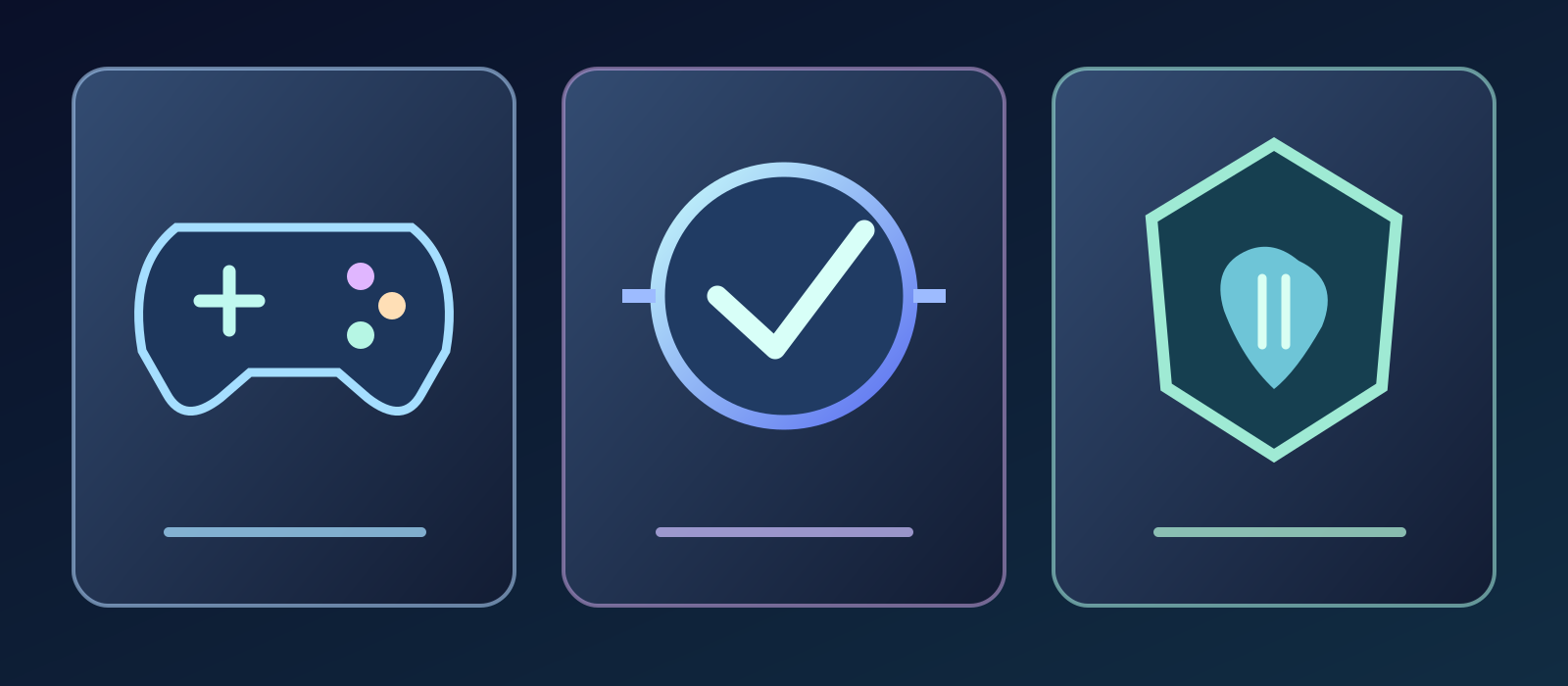
- Physical controller
- Input translation
- Game-side features
Valve describes Steam Input as a suite of software, hardware and configuration tools between the player and the game. Its legacy mode can map physical inputs to virtual gamepad buttons, keyboard keys or mouse actions. That flexibility can make an older title playable with a modern device even if it never implemented Steam's native API. But when the game receives only impersonated lower-level events, it may not know the real device model. Translation can restore functionality without restoring accurate presentation.
The meaningful divide is legacy versus native integration
In native Steam Input mode, developers can define actions such as Jump or Open Map, and the game can ask the API which physical control is bound to an action so that it can show a matching glyph. In legacy mode the game only receives the emulated input and might assume the Xbox button layout. Valve explicitly notes that controller symbols may not match in that setup. These are different design contracts, not merely a matter of installing the newest controller driver.
Why the screen says A when your controller has Cross
A game that sees an emulated Xbox device often chooses Xbox graphics because that is all the device identity it receives. Some titles also default to one set of icons even with otherwise functional controller support, while others offer a manual icon selection. Button mapping and button labelling are distinct: pressing Cross can successfully trigger the intended action even as the prompt reads A. The confusion is particularly noticeable in timing-sensitive games, where players rely on familiar shapes.
External remappers can obscure the original device
Valve's player documentation notes that third-party remapping software may expose a virtual Xbox 360 controller in place of a PlayStation device. Steam can then interact with that virtual device rather than the original hardware. Running multiple mapping layers may complicate where an input is coming from and why a glyph appears. This does not prove every remapper is faulty or malicious; it explains why stacking translators can reduce clarity. Developers and users both benefit when the input route is transparent.
Basic DualSense control does not guarantee DualSense effects
PlayStation confirms that DualSense can connect to compatible PC applications through USB or Bluetooth. It also cautions that adaptive triggers and haptic feedback require the title to support them, and that some PC haptic implementations require USB. Recognizing the controller in Windows or navigating a menu does not certify every sensory feature. The title must actively implement the relevant effects and the connection must support that particular implementation. This distinction is easy to miss in a simple 'controller supported' badge.
Wired versus wireless cannot be reduced to one rule
Some PC games require a USB connection for advanced DualSense haptics, according to Sony, while normal button input works in many titles over Bluetooth. That does not mean USB unlocks every feature in every game or that Bluetooth is always inferior for basic play. The relevant questions are which title, which controller feature, which platform version and which transport. A specific technical requirement should not be transformed into an unsupported universal rule about all PC controllers.
Touchpads, triggers and vibration travel different paths
A title may implement sticks and face buttons, yet ignore the touchpad or advanced trigger resistance. Another may provide a custom vibration effect but no game-specific adaptive triggers. Controller emulation that reproduces a digital button press cannot automatically reproduce corresponding tactile feedback. 'Supported controller' can therefore range from basic navigation to a game-specific sensory experience. Players deserve precise labels, and reviewers should avoid presenting all of these layers as equivalent.
Why game prompts can flicker between keyboard and pad
Valve warns that legacy configurations mixing keyboard, mouse and controller inputs can confuse games that assume those devices cannot be active simultaneously. A player may see the interface switch repeatedly between key labels and gamepad glyphs, or experience camera behaviour they did not expect. That phenomenon can come from the game's input assumptions, not solely from controller latency or hardware quality. Robust design should preserve the intended active input without sacrificing legitimate mixed controls.
Why two PC games support the same controller differently
Studios choose different input libraries, icon sets, remapping models, platform integrations and budgets. Even games in the same franchise can differ if their PC ports were developed by different teams or engines. There is no general promise that every Steam title supports all DualSense-specific features, and no reason to assume every incompatible-looking prompt means gameplay is impossible. Compatibility must be judged at the level of individual games and individual features.
A correct glyph is part of usability, not decoration
Valve's developer guidelines emphasize device-appropriate symbols, in-game actions, configurable bindings and interfaces that can tolerate mixed control schemes. A menu that lets players explicitly select PlayStation or Xbox glyphs can be valuable even if automatic detection is complicated by emulation. A wrong prompt in a quick-time event may create a real playability problem despite perfect electrical button input. The visual language is an essential part of the interface contract.
What can a player reasonably expect before buying
A platform compatibility label is a starting point, not a precise inventory of every controller effect. Sony states that thousands of Steam games with controller support work with DualSense, while advanced haptics and adaptive triggers are supported in selected titles and may depend on USB. Store pages and developer statements are more useful when they identify whether buttons, glyphs, vibration and specialized triggers actually work. Neither 'PC compatible' nor 'fully supported' should be stretched beyond the documented features.
Why this should not become entirely the player's burden
Users can sometimes choose icon sets or simplify their input mappings, but the developer knows which APIs and device paths were implemented. Platform software also knows more about physical devices before translating them into generic controls. Both sides can document the distinction between native hardware support and input emulation, test prompt changes and avoid marketing that suggests complete sensory compatibility when only basic input works. Better defaults save players from unnecessary troubleshooting.
Universal compatibility versus predictable compatibility
Not every independent game needs bespoke adaptive-trigger effects or every available input feature. Reliable controls, truthful glyphs, coherent menus and a clear compatibility description are the more universal priorities. XInput emulation can be better than abandoning a controller entirely; native integration can be better for a title designed around unique DualSense effects. Quality is not a checkbox that says every pad works: it is a set of predictable behaviours a player can verify.
The bigger lesson: one controller, several technical languages
When Xbox prompts appear under your fingers on a PlayStation pad, a translator may be making the game work at the cost of correctly naming the physical device. Missing advanced effects may be the result of game-level support and connection requirements instead. Valve's legacy/native distinction and Sony's feature-specific PC guidance explain how both can be true. Separating detection, mapping, visuals and tactile effects leads to better expectations and sharper criticism of game support without blaming the player or assuming every mismatch is a hardware defect.
Primary official references (checked 9 October 2026): Manufacturer-specific features and transport restrictions may change by game and update. This essay is an editorial compatibility analysis, not a guarantee for individual models
Sources & references5
- Steamworks Documentation — conceptspartner.steamgames.com
- Steamworks Documentation — getting started for playerspartner.steamgames.com
- Steamworks Documentation — getting started for devspartner.steamgames.com
- PlayStation Support — playstation gaming on pcplaystation.com
- PlayStation Support — pc accessoriesplaystation.com