

A Minecraft: Java Edition Invalid Session message—or a server disconnect that says Failed to Verify Username—can prevent you from joining an otherwise working multiplayer server. These phrases often point to a problem with verifying the Java player session, but the message alone cannot identify the exact cause. A stale Launcher sign-in, wrong Microsoft account, temporary authentication service problem or private server configuration may look similar. This guide uses Minecraft's official sign-in and Launcher instructions for safe diagnosis. It does not recommend cracked launchers, bypassing server authentication, disabling `online-mode`, deleting `.minecraft`, or buying a second copy before you check the account you already own.
1. What the two error messages really tell you
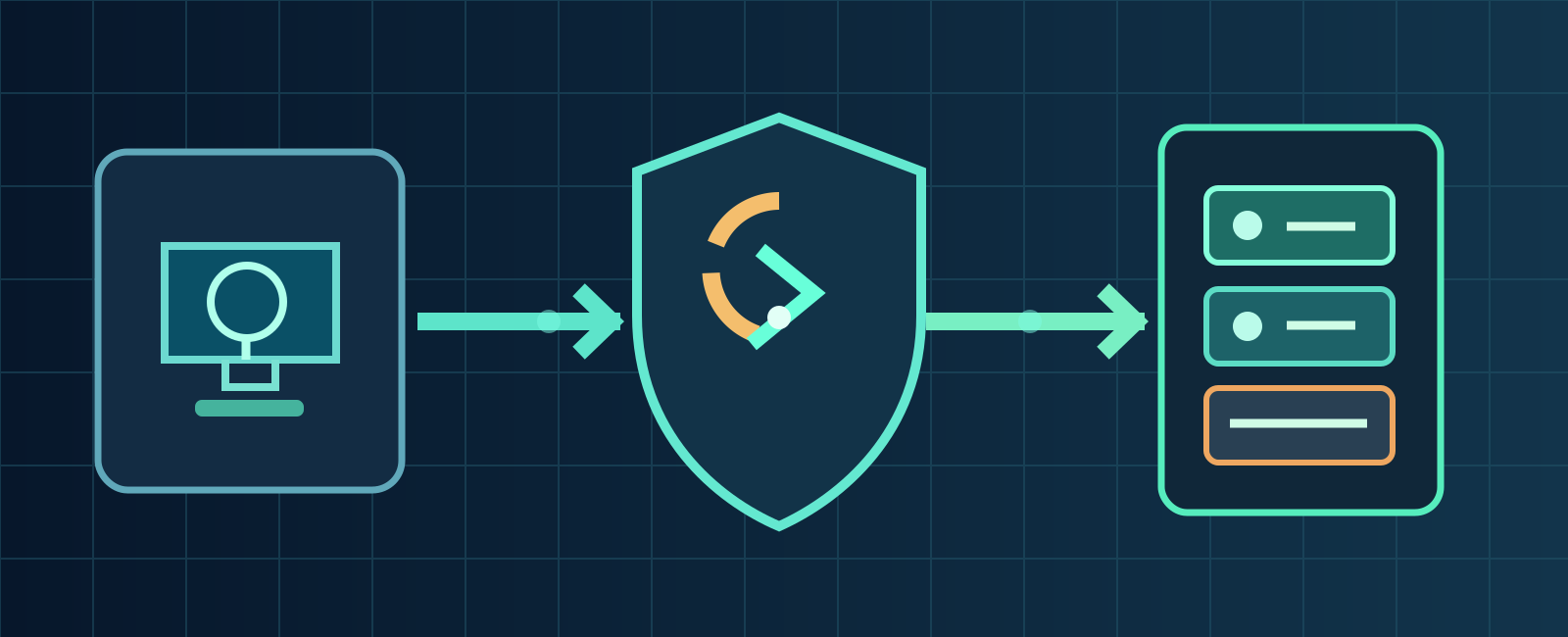
- Official launcher
- Refresh Microsoft
- Java server check
Invalid Session can appear when a Java game session is no longer accepted; Failed to Verify Username can appear during server-side identity verification. These are useful descriptions of where joining failed, not authoritative explanations of whether the cause is a temporary Microsoft session, service interruption, wrong account or an administrator's configuration. The official Minecraft documents below provide supported sign-in and server-connection steps; they do not prove that every instance of these exact strings shares one cause. Note the precise message, launcher type, server address and when it happened.
2. Restart the game and official Launcher completely
Before reinstalling or editing folders, exit the multiplayer game to desktop and fully close Minecraft Launcher. Reopen only the official Launcher, launch Java Edition, then test the same server once. If the previous game process remained open during a new login, a full close can eliminate that confusing variable. Where a PC has several launcher instances, make sure only the correct signed-in client is active. Repeatedly hammering Join or using an unverified launcher does not help establish cause. A normal application restart leaves single-player world files untouched.

3. Reset the Microsoft account session correctly
Minecraft Help's Reset Your Microsoft Account Sign-in article gives an exact Launcher path: select the top-left menu showing your Gamertag, choose Log out, then choose Microsoft Login. Select Sign in with a different account only when necessary, otherwise continue with Let's Go. Use the account that owns Minecraft: Java Edition; do not log into someone else's account to test. Sign-out signs out of authentication, not a command to delete saved worlds. Launch Java again after the refreshed session and note whether the error changes.
4. Verify your ownership, not just the visible username
Minecraft Help says a missing Play button often means the Launcher is signed into a Microsoft account without the license. Check your purchase confirmation email or your Microsoft account Order History and confirm the account really owns Java Edition, or has applicable PC Game Pass entitlement. Two accounts can have similar gamertags; display names are not proof of purchase. Do not automatically buy Minecraft again just because you see a login or verification failure. If entitlement appears missing, solve the license/account identity issue first rather than modifying the server.
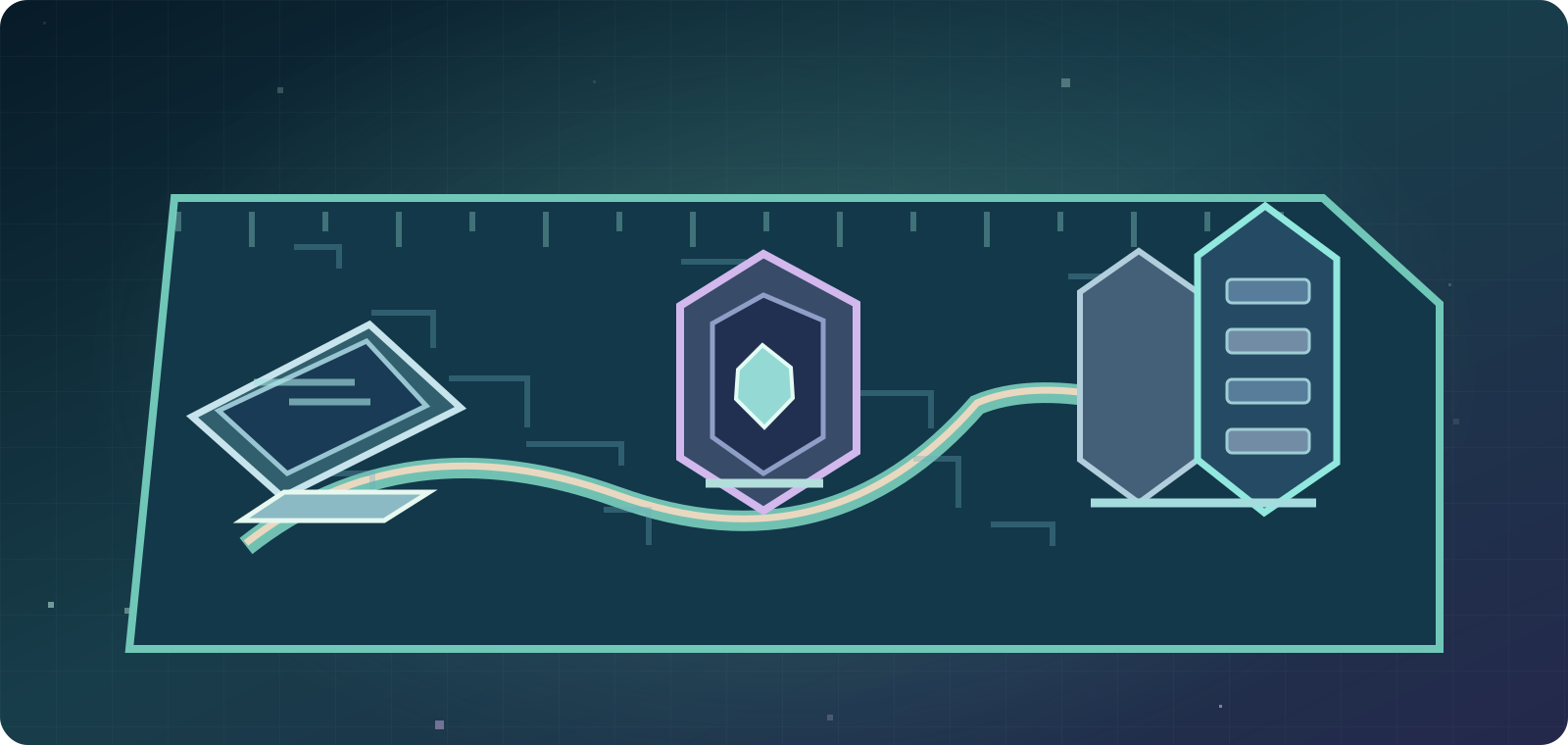
- Invalid Session: rejected or outdated game session is possible, not automatically a ban.
- Failed to Verify Username: server could not complete a player-verification step.
- Missing Play button: check Microsoft-account entitlement.
- Bedrock Marketplace Invalid Session: different product flow from Java server login.
5. Match Launcher, Microsoft Store and Xbox app
On Windows, Minecraft Launcher can interact with Microsoft Store and Xbox services for license checks. Official help recommends confirming the same entitled Microsoft account is used across Launcher, Store and Xbox app. If the Store has a different profile, use its account icon to sign out and into the right account. Check the Xbox app similarly; then restart the Launcher. Some family-sharing arrangements are more specific, so do not override a legitimate family organizer's setup without permission. On macOS, Microsoft Store/Xbox app Windows steps are not the same workflow.
6. Check whether Microsoft or game services are having trouble
A temporary login or entitlement service issue may affect several players at once even while a specific world is running. Review legitimate Minecraft/Xbox service notices and compare with a second trusted server; this is a check, not a claim that servers are down right now. If friends using different operators encounter the same account-verification failure simultaneously, record the time and official notices. If only one private server rejects everyone, its administrator should review server logs and hosting health. Do not download an authentication bypass tool to 'fix' an external outage.

7. Compare two legitimate Java multiplayer servers
Minecraft's official Play Java Edition Online in a Multiplayer Server instructions use Main Menu → Multiplayer → Add Server, Direct Connection or existing server → Join Server. Test another trusted Java Edition server using the correct version and your real account. If only one destination reports Failed to Verify Username, provide its owner the exact text and time rather than assuming your entire account is broken. Never paste a private server's address or log files publicly without checking for personal identifiers. One successful connection provides evidence about the affected server, not absolute proof of its root cause.
8. Keep Java, Bedrock, Realms and Marketplace messages distinct
Java Edition servers and Bedrock Edition worlds are different ecosystems; official requirements state Java connects to Java-hosted games and Bedrock to Bedrock. The Invalid Session wording shown by Bedrock's Marketplace belongs to a different feature and should not be diagnosed by blindly applying Java dedicated-server steps. A Java Realm is also different from a self-hosted server and may have its own subscription/service checks. Before collecting fixes, write down whether you use Java Multiplayer, a Java Realm or Bedrock Marketplace so the correct support page applies.
9. Update or match the Java game version without destroying installs
Official Minecraft guidance recommends matching the multiplayer server's edition and version. Use the Launcher Installations tab to choose a suitable version and ask the administrator what release their server supports. A snapshot, mod loader or beta profile may not match a normal vanilla server. A version mismatch usually has its own error and is not automatically the cause of Invalid Session, but it is useful to eliminate when multiple problems overlap. Do not overwrite an old modded installation that contains custom resources; preserve separate profiles and copies of your worlds.
- Close Java and Launcher and reopen the official client.
- Use Gamertag → Log out → Microsoft Login with the entitled account.
- Check Store/Xbox app alignment on Windows, Java version and trusted service status.
- Compare another Java server or a Java Realm, and report exact symptoms.
10. Test a clean Java installation for suspected mod interference
Minecraft Help documents Minecraft Launcher → Java Edition → Installations → New installation to create a fresh test profile while preserving existing installations. Select the same supported game release as the target server, install and launch the clean profile. If the clean official client joins but a custom Fabric, Forge or other modded profile fails, that comparison points toward local mod/launcher interaction. It still does not prove a particular mod caused an authentication failure. Protect the original game directory and copy any single-player worlds before advanced troubleshooting.
11. Do not bypass account or server authentication
A suggestion to change a public Java server's `online-mode` to `false`, use an offline/cracked client, steal another player's token or disable account security is not a supported player remedy. It can weaken identity checks and impersonation protection on servers. Only the legitimate server owner should investigate real server software, plugins, logs and host status under their own provider's documentation. A client cannot safely repair a private server's broken verification service by taking over its configuration. Do not post login tokens or sensitive server logs in public troubleshooting forums.
12. Family settings and license problems are separate branches
Minecraft's multiplayer requirements also mention Microsoft account permission, family settings and edition compatibility. A family-policy message such as 'Multiplayer is disabled' should be investigated through authorized parental account settings, not assumed identical to Invalid Session. A missing Play button points toward a different entitlement path; Java Realms subscription access is not the same as a third-party server. Keep these diagnostic branches distinct. Never teach minors to bypass a family organizer's controls, and never attempt license workarounds to join verified servers.
13. Mojang account migration ended years ago
Official Minecraft Help states the old Mojang-to-Microsoft Java account migration period ended on December 18, 2023. Old articles or videos that say you can migrate that legacy account today are out of date. If you no longer know which Microsoft account owns your Java Edition license, follow Microsoft's supported account recovery and Minecraft purchase history checks. Do not trust websites claiming to 'recover' or reissue old tokens or capes in exchange for your password. A new Microsoft account is not a replacement for verifying the purchase on your existing one.
- Never delete `.minecraft` or `saves` as a first step.
- Never disable server `online-mode`, copy tokens or use cracked launchers.
- Do back up worlds and test a separate clean Java installation if needed.
- Do send sanitized details to official support or the server owner.
14. Prepare the right support and server-admin evidence
Collect the exact error message, Minecraft: Java Edition version, whether the official Launcher is used, operating system, entitled Microsoft account confirmation without exposing its email, whether sign-out/sign-in helped, Windows Store/Xbox account alignment when relevant, target server versus second server results, and time/time zone. A server administrator may also need its own logs but should remove private data before sharing. If access or licensing fails across clients, contact official Minecraft Support; if only a private server fails, ask its administrator. Avoid public screenshots showing access tokens, session IDs, purchase receipts or real account details.
Recommended order: identify the exact Java error → restart authentic Launcher → refresh Microsoft sign-in → check license and Windows account alignment → confirm correct Java edition/version → compare an authenticated second server → test safe separate clean profile only when justified → contact Minecraft Help or the host. A session message is a clue, not a definitive ban or authorization to weaken security.
Official Minecraft Help sources (reviewed October 8, 2026): https://help.minecraft.net/hc/en-us/articles/360045828292-How-to-Sign-Out-of-Minecraft ; https://help.minecraft.net/hc/en-us/articles/27201635294861-Troubleshooting-Minecraft-Sign-in-Issues ; https://help.minecraft.net/hc/en-us/articles/6662588435597 ; https://help.minecraft.net/hc/en-us/articles/23431742854413-Troubleshooting-Accessing-Games-from-the-Minecraft-Launcher ; https://help.minecraft.net/hc/en-us/articles/32899741198989 ; https://help.minecraft.net/hc/en-us/articles/35930809028749-Minecraft-Requirements-to-Play-Minecraft-Multiplayer-Games ; https://help.minecraft.net/hc/en-us/articles/360050865492-Information-about-Mojang-Accounts-and-Microsoft-Account-Migration ; https://help.minecraft.net/hc/en-us/articles/23431114561037-Troubleshooting-Launching-Minecraft-from-the-Minecraft-Launcher. These official account remedies do not establish one universal root cause for every server error.