

The League of Legends 'Attempting to Reconnect' box is not identical to a client that opens but stays on a black or endless loading screen after champion select. Riot says the in-match warning normally appears when a connection is badly disrupted and the game is trying to catch up with missing data; your champion may freeze or move while everything else stands still. By contrast, an infinite load may involve a background conflict, local client launch problem or blocked connection. This guide separates those cases using Riot's updated 2026 support articles, beginning with safe server-status checks and tests outside ranked play. Do not risk an AFK penalty by repeatedly joining competitive games to test your connection.
1. What 'Attempting to Reconnect' actually means
Riot's dedicated support article says Attempting to Reconnect appears when in-game connectivity is severely interrupted and the game tries to recover missing data. Your champion may stand frozen or keep moving while the rest of the match stops. This describes loss of real-time communication, not a specific ban, broken GPU or proof Riot's entire service is down. Note whether the issue lasts seconds, forces a full disconnect, or appears only when another person in your home uses the network. Distinguishing the symptom is more useful than applying every suggested internet 'fix'.
2. Infinite loading after champion select is a different case
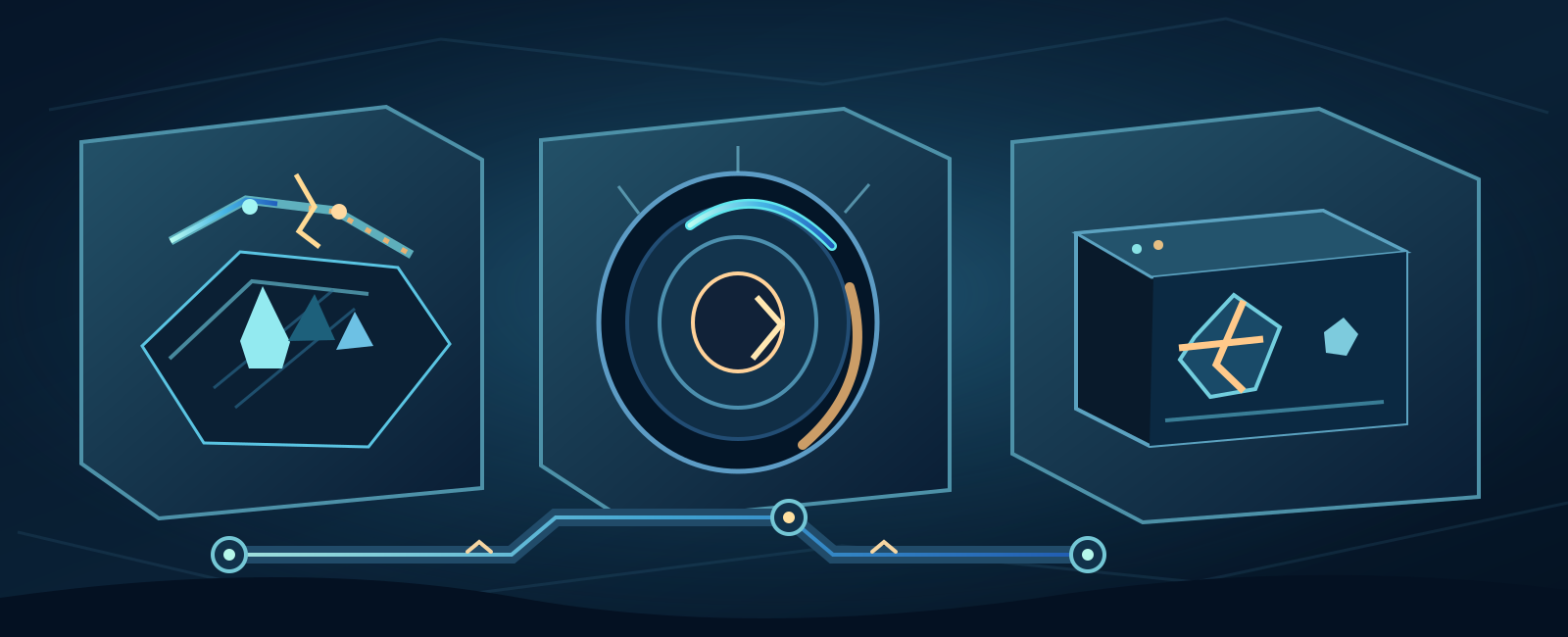
- In-match connection loss
- Infinite loading after select
- Client launch failure
Riot's September 21, 2026 'Stuck on Infinite Loading Screen' guide addresses games that open but cannot get beyond loading. This can involve local processes, access rules or connection problems. Start with a normal Windows restart, then investigate background applications or documented clean-boot steps if the symptom persists. If you reach champion select but never see the match, capture that exact timeline. Don't assume a spinning screen is identical to a live match suffering Packet Loss. A black screen may also require video or crash investigation when network evidence is normal.
3. Determine whether Riot's regional servers are affected
Check https://status.riotgames.com/ and select the relevant League region rather than treating social-media reports from a different shard as proof of a worldwide outage. Scheduled maintenance, authentication incidents and regional infrastructure issues can have different scopes. Ask whether a friend on the same region and a different provider can load a game. When Riot confirms a live incident, changing DNS or reinstalling League will not repair Riot's infrastructure. A green status indicator is useful evidence but cannot guarantee every match instance or local route will work perfectly.
4. Test without risking LeaverBuster or AFK penalties
Riot explicitly recommends a Custom Game for connection testing so you can confirm whether it works without exposing a ranked match or teammates to repeated disconnects. Riot also mentions Lag Report (Beta) as a test for supported regions, including North America, EU-West and EU Nordic & East; it is not a universal service for every location. Avoid joining ranked games just to see if the warning returns. If you were kicked from a real match, document the time and visible error; only reconnect when a stable connection appears reasonably likely.
- Match running + Attempting to Reconnect: network packets may be missing.
- After champion select + endless/black load: check processes, client launch and connection.
- Before client opens + VAN code: consult Vanguard-specific diagnostic guide.
- Server outage confirmed: wait for Riot-side resolution rather than destructive PC fixes.
5. Compare Ethernet, Wi-Fi interference and Packet Loss
Riot recommends wired Ethernet because Wi-Fi interference, overcrowded channels and distance can create lag spikes and packet loss. Even fast advertised Mbps does not guarantee stable game traffic. Pause wireless streaming, test a cable on the same PC and compare the same kind of Custom Game. If Ethernet works but Wi-Fi fails, focus on positioning, competing devices and your access point rather than game reinstallations. Avoid factory-resetting a shared router, and ask its administrator before disrupting family, campus or workplace service.
6. Close bandwidth-heavy apps and nonessential overlays
Background video streaming, game downloads, cloud backups and some real-time communications can increase congestion. Riot also publishes a specific Disabling Overlays troubleshooting article because overlays can interfere with client behavior, window focus or crashes. Quit third-party overlays and nonessential launchers one by one, then retest a custom session. Do not turn off required accessibility features without arranging a safe alternative. A disappearing overlay problem does not automatically prove your internet was unstable; it helps identify a local client/UI issue separately from packets.
7. Restart the Riot Client completely, not only its window
A League window can disappear while Riot background processes remain running. Fully exit League and Riot Client normally, confirm no stalled duplicate session persists and restart the PC if needed. Check that no patch download is pending before starting again. For a launch-only failure, Riot's Troubleshooting Game Launching Errors is more relevant than the in-match Reconnect article; VAN-prefixed errors belong to Vanguard's own error-code guide. Never kill unknown system processes or disable Windows services indiscriminately to force a game startup.
8. Windows update, network adapter and permissions
Riot's current Troubleshoot PC Connection recommends current Windows patches and, when relevant, updated network adapter drivers from trusted vendors. An outdated adapter can lead to unreliable connectivity even when the router is fine. Windows permission problems may also prevent the Riot Client from performing particular tasks; the official guide discusses administrator privileges for a targeted test. Use legitimate Windows Update, Device Manager or hardware manufacturers; don't install unofficial driver packs. Administrator access should be used only when needed and granted by the device owner.
9. DNS is conditional, not a magical ping reduction
Riot lists DNS configuration as a possible help when the Riot Client cannot resolve or connect to its services, and discusses clearing the DNS cache in that context. That does not mean changing to a public DNS can reliably fix real-time Packet Loss, high ping, ISP routing or GPU stutter inside an existing match. Third-party DNS services have their own privacy implications. Write down your previous setting and ask the network administrator before changing managed devices. If Ethernet solves the issue, randomly trying more DNS addresses is unlikely to be the most useful next step.
10. Firewall and VPN advice must be handled carefully
Riot's help pages discuss firewall configuration and warn that VPN or proxy connections can complicate routing. Prefer verifying the specific Riot Client and League allow-rules using Riot's official current platform instructions while leaving endpoint protection running. Avoid permanently disabling Windows Defender, opening every router port, installing questionable 'game boost' VPNs or bypassing controlled networks. Some older Riot troubleshooting articles mention temporarily disabling a firewall for diagnosis; that is not a safe blanket recommendation for all users. Have an authorized administrator review advanced restrictions instead.
- Check your League region: official Riot service status.
- Test safely: Custom Game, not Ranked, and regional Lag Report where supported.
- Compare: Ethernet versus Wi-Fi; pause streams/downloads.
- Escalate: official RRT ZIP and reproducible time/error notes.
11. Use clean boot only when background conflicts are suspected
If the infinite loading screen persists after restarting, Riot's September 2026 page links to a documented clean boot procedure to identify background program conflicts. This differs from erasing system configuration or disabling essential security drivers. Record the current startup state and follow Microsoft/Riot steps carefully if you own the computer. On company- or school-managed devices, ask IT first. When the issue disappears with fewer startup apps, restore services selectively to isolate the culprit. The goal is a reproducible diagnosis, not living with antivirus and updates permanently disabled.
12. Differentiate ping problems, low FPS and a frozen client
Ping/latency is network delay, Packet Loss means game data is lost, while FPS measures frames drawn by the machine. A champion that freezes while the rest of the game catches up suggests network interruption; choppy graphics with stable connection can involve GPU/CPU, graphics settings or overlays. A black client window before champion select can be a UI/launch issue rather than a match-server packet route problem. Don't treat an in-game FPS setting as a cure for ISP problems, or a DNS change as a fix for video-driver crashes.
13. Collect the right Riot Repair Tool and game logs
Riot recommends Riot Repair Tool (RRT)—the successor to Hextech Repair Tool—to collect the diagnostic logs required by Player Support. Choose League of Legends, run the official tool as administrator on Windows if instructed, and attach its ZIP to a private support ticket. Riot's Network, System and Logs (Windows) explains Riot Client, LeagueClient and game/network logs, which cover different stages: login, champion select and in-match networking. Don't upload raw logs to public Discord channels: Riot warns some reports can disclose IP or other device details.
- Do not permanently disable firewall or anti-malware.
- Do not promise DNS alone fixes Packet Loss or FPS.
- Do not delete game/save/system folders because the load spinner hangs.
- Do not test unstable networking repeatedly in ranked and risk AFK sanctions.
14. What to put in a useful Player Support ticket
Include exact wording, region/shard, when the failure occurs (client launch, loading or live match), Windows/macOS version, last patch, wired/Wi-Fi result, Custom Game test, whether status.riotgames.com reports incidents, Riot Client overlay/background-app changes and RRT ZIP. Note if teammates on other providers are affected. If the issue is a VAN code, include the exact number instead of calling it a generic Reconnect error. Mask screenshots and do not share passwords, 2FA codes, private IP addresses or authentication tokens publicly. This helps Riot distinguish server, client and ISP causes.
Practical sequence: locate the failure stage → check Riot status in the correct region → use Custom Game to test → wired connection and reduced background traffic → Riot Client restart and official Windows updates → investigate overlays or clean boot if loading fails → read-only logs and RRT → Riot Player Support. There is no single magic fix for every black screen, reconnect message and launch error; diagnose them as separate symptoms.
Riot first-party references reviewed October 8, 2026: https://support.riotgames.com/en-us/league-of-legends/performance/attempting-to-reconnect ; https://support.riotgames.com/en-us/riot/performance/stuck-on-infinite-loading-screen ; https://support.riotgames.com/en-us/riot/performance/troubleshoot-pc-connection ; https://support.riotgames.com/en-us/riot/performance/troubleshooting-game-launching-errors ; https://support.riotgames.com/en-us/riot/performance/gathering-logs-riot-repair-tool-rrt ; https://support.riotgames.com/en-us/riot/performance/network-system-and-logs-windows ; https://support.riotgames.com/en-us/league-of-legends/performance/disabling-overlays ; https://support.riotgames.com/en-us/league-of-legends/performance/league-error-codes-and-solutions. https://status.riotgames.com/ Service availability can change; no active incident is asserted.