

Want to stream eFootball, League of Legends or another PC game but keep getting a black preview, double audio or a connection that stops? Many early problems come from the wrong capture source, overloaded hardware or unstable upload bandwidth. This guide follows OBS's published setup and troubleshooting advice instead of prescribing a magic bitrate. The Zaplat arena can help viewers discover member streams; it does not replace the actual video streaming platform.
Start with official OBS and the setup wizard
Download OBS Studio from its official website and run Tools → Auto-Configuration Wizard. The wizard considers your hardware, network and whether you want to stream or record. A stable 720p/30 stream may be better than an unstable 1080p/60 attempt. Treat its settings as a starting point that must be tested, not a universal promise of broadcast quality.
Build a simple scene without exposing private data
Create a named Scene and add the appropriate game capture source in Sources. Avoid capturing the entire desktop if private messages, email or passwords may appear; capturing a game window is often safer. You can add a webcam and overlays later. Start with one main visual source and one microphone so audio echoes and black frames are easier to isolate.
Use Windows Game Capture when appropriate
OBS recommends Game Capture for many Windows 3D games. You can choose a specific game window or another available capture mode. Launch the game and inspect the preview. Avoid piling multiple competing game-capture sources into a scene without a reason; otherwise determining which source failed becomes unnecessarily difficult.
Fix a black preview before changing bitrate
First check that the game is running and the correct window is selected. Fullscreen games may stop rendering when minimized, which can make Alt+Tab previews misleading. OBS specifically documents Window Capture alternatives for games such as Counter-Strike 2 and Destiny 2; some Call of Duty titles may require OBS to run as administrator. A single fix will not work for every game.
Check microphone and game audio separately
Watch the Audio Mixer meters while you speak and while the game makes noise. A silent meter may mean the wrong microphone or desktop device is selected in Settings → Audio. Make a short recording and listen back through headphones. Duplicated audio sources may cause echoes or buzzing even when both meters seem normal, so visual checks alone are insufficient.
Avoid clipping and excessive filters
Keep your voice clear over the game's sound without regularly hitting distorted peaks. OBS offers noise suppression, a compressor and a limiter, but each solves a different problem and none magically upgrades poor microphone placement. Add one filter at a time, compare a short sample before and after, and watch for robotic artifacts or cut-off words.
Choose the actual platform and protect your stream key
Open Settings → Stream, select a supported service and use the connection process described by that platform. A stream key is a credential: never share it in a screenshot or public message. YouTube and other services have their own live-stream eligibility or activation steps; selecting a service in OBS alone cannot guarantee that the destination is ready.
Distinguish network dropped frames from PC lag
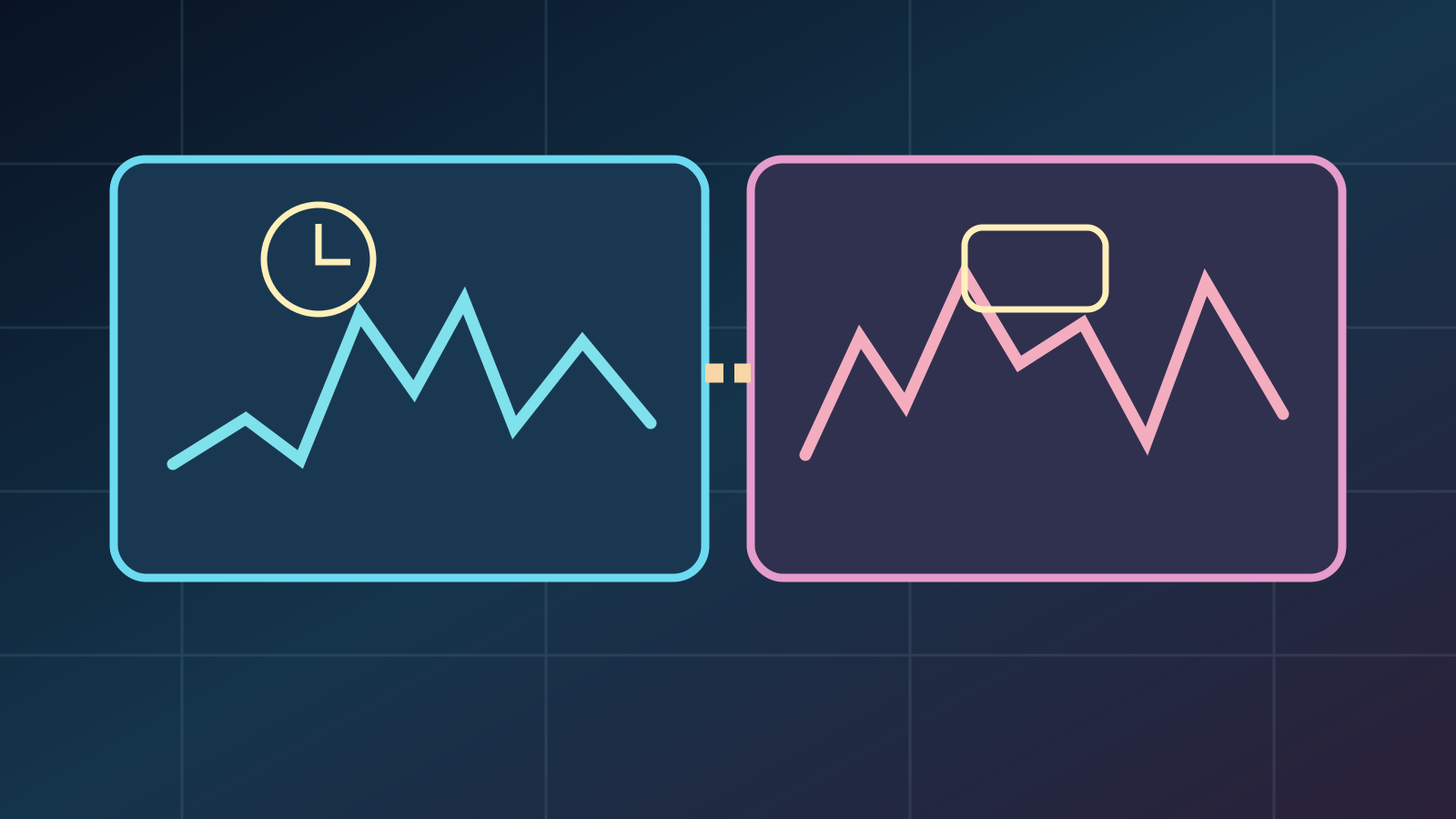
OBS's network dropped frames indicate that data is not reaching the ingest server reliably enough. Rendering lag and encoding overload point to different problems involving your GPU, CPU, encoder or scene complexity. Do not buy a graphics card to fix an upload bottleneck, or lower video bitrate blindly when a graphics render load is the actual cause.
Improve upload stability step by step
OBS suggests considering a different ingest server, lowering video bitrate when the connection cannot maintain it, and testing wired Ethernet instead of unstable Wi-Fi. Your relevant figure is sustained upload performance, not download speed. Change one variable at a time and compare OBS statistics. Persistent failures across services may require reviewing your network or contacting the ISP.
Test privately before broadcasting to everyone
Record a short session, then use a private or unlisted test stream if your chosen service allows it. Watch for at least several minutes and check image motion, sound synchronization, readable gameplay and dropped frames from another device. Keep a note of every change; altering capture mode, resolution and network settings together hides the real cause of a problem.
Write a stream title that answers a viewer's question
Instead of a vague 'I'm live', combine the game's searchable English name with an accurate hook, for example eFootball Co-op and a real challenge format. Avoid invented prizes or misleading 'official' tournament labels. Explain what viewers will see: practice, strategy, a series completion or a competitive match. Viewers return for predictable value, not for a crowded graphic.
Let your community discover the live link on Zaplat
Once your broadcast is genuinely live on its platform, check the Zaplat Gaming arena and any account-specific options for connecting or listing supported stream links. Member cards may reflect services such as YouTube, subject to linking and status updates. Do not promise every stream appears instantly or that visiting the arena automatically registers someone for a tournament.
Is there one best OBS bitrate for every streamer?
No. Upload stability, hardware and the destination's recommendations matter. Start with the wizard and measure the result.
Why is Game Capture black?
Check the selected window and fullscreen behavior, plus documented game-specific conflicts and possible Window Capture alternatives.
Does dropped frames always mean my GPU is weak?
No. Network dropped frames and rendering or encoding overload are different diagnostic categories.
Can OBS capture PlayStation gameplay?
Usually a compatible capture method or alternate console streaming workflow is needed; Windows Game Capture alone is not a capture card.
Does Zaplat host the video itself?
The broadcast remains on the supported video service. The arena helps discover member links and activities subject to account settings.
Sources & references6
- obsproject.com — quick start guideobsproject.com
- obsproject.com — game capture setup guideobsproject.com
- obsproject.com — game capture troubleshootingobsproject.com
- obsproject.com — audio mixer guideobsproject.com
- obsproject.com — stream connection troubleshootingobsproject.com
- zaplatgaming.comzaplatgaming.com